India Technology Blogs Network |
| Now open your PDF files in Tabbed Fashion [ Foxit 2.3 update ] [Technospot.net] Posted: 29 Apr 2008 10:20 AM CDT
The most attractive feature of Foxit 2.3 is, the tabs, exactly like your web browser, you can open multiple PDF files in single window, and switch between them using the tabs. Other New Features
Yet all the new features are not avaialble in the free version, still switching to Foxit 2.3 as your default PDF reader makes sense. My Experience
You can read more details on New Features of Foxit 2.3, and it can be downloaded here. For a detailed comparison of other free popular PDF Readers you can have a look to our Compared and Tested series on popular pdf readers
Your Play Ground
        | ||||||||||||||||||||||||||||||||||||||||||||||||
| Free CD & DVD Burning Software for Windows XP & Vista [-| Life Rocks! 2.0 |-] Posted: 29 Apr 2008 07:46 AM CDT BurnOn is a free CD and DVD burning software for which supports both XP and Vista. Apart from burning CDs/DVDs, BurnOn also does other jobs like split DVD-Video movies, extract data and audio tracks from CD/DVD media to individual files on your hard disk and backup and duplicate unencrypted CD/DVD media. BurnOn CD/DVD burning software is a free to download. Features of BurnOn;
Download BurnOn | Alternate Link       | ||||||||||||||||||||||||||||||||||||||||||||||||
| Add Google Maps driving directions to your website [Online Tech Tips] Posted: 29 Apr 2008 06:23 AM CDT Copyright Feed Content - OnlineTechTips - Aseem Kishore 18254532AKMK I love using Google Maps “Get Directions” feature any time I need to figure how to get from point A to B. It’s one of the best ways to get driving directions in the USA for sure. So what if you have a wedding website or a MySpace page and you’re throwing a big party, wouldn’t it be nice if your guests could go to your site, type in the address they will be coming from and automatically get directions to the event location!? Not sure what I mean? Type your address in the box below and you’ll get directions from your address to my house: Cool huh? You can easily create this little form on any website, blog, or anywhere you can put in some HTML code! This is also great for small business web sites as you can throw it up on your contact page and people can get directions quickly, rather than having to copy your address, open a new window, and then type in their starting address. So how do we go about creating this modified get directions box? Well first, we’ll need to get the correct syntax for the URL that Google uses for directions. Luckily, we can figure that out by getting directions between two places and then clicking on the Send link at the top right. Here’s what you end up getting: Notice the link in the email message! That’s what we need! Here’s what the entire link looks like right now:
Eeeks! That’s pretty long! There are a lot of fields in the URL, such as SADDR (starting address), DADDR (destination address), hl (language), and some more stuff related to the latitude and longitude. However, you don’t really need all of these fields in order for Google to give you driving directions! All you need is this: http://maps.google.com/maps?saddr=start&daddr=end Go ahead and give it a shot. Put in an address in quotes for the starting and ending address and paste the URL into your browser! I replaced start with my home city New Orleans and end with Houston, TX, so this is what my Google Maps directions URL looks like: http://maps.google.com/maps?saddr=”new orleans, la”&daddr=”houston, tx” Pretty nifty eh! Isn’t it fun to mess around with these types of things! Ok, so now that we have a URL that we can pass into Google Maps, we need to create a simple form with two fields, one for the starting address and one for the destination address. If you want people to just type in their address and get directions to your place, then we’ll want the second field to be hidden and already set to the destination address. <form action=”http://maps.google.com/maps” method=”get” target=”_blank”> Check out the code above. The first line starts out form and says that when the submit button is clicked, the data should be sent to maps.google.com/maps. The target=blank means that we want the result to open in a new window. Then we have a text box for the starting address, which is blank. The second text box is hidden and the value is the destination address that we desire. Finally, there is a submit button with the title “Get Directions”. Now when someone types in their address, they’ll get this: You can customize the directions and map even more by following the same procedure as I went through above. For example, let’s say you don’t want the default view to be maps, but instead want it to be Satellite and show Traffic. Type in your directions and then press the Satellite and Traffic buttons on the Google map. Next, click on Send and you’ll see the modified URL: Notice the layer=t and t=h fields in the URL. layer=t is for the traffic layer and t=h means satellite in some strange fashion! Just tack those on to your final URL and you’ve now got a highly customized Google Maps Get Directions form on your site! Source: AskDaveTaylor Have any issues with this, post a comment and I’ll try to help! Enjoy!
Related postsCopyright © 2007 Online Tech Tips. Aseem Kishore (digitalfingerprint: a59a56dce36427d83e23b501579944fcakmk1980 (66.150.96.109) ) Add Google Maps driving directions to your website  | ||||||||||||||||||||||||||||||||||||||||||||||||
| What’s Running - Get details on Windows Processes [Online Tech Tips] Posted: 29 Apr 2008 06:12 AM CDT Copyright Feed Content - OnlineTechTips - Aseem Kishore 18254532AKMK Want to know more about startup processes and task manager processes? Have you ever feel curious about any of the running processes inside your computer? Wish that you could know more details about them? There are a few advantages in knowing about the running processes inside a Windows computer. One of the advantages is that you will be able to quickly differentiate between good and bad processes. For example, knowing that services.exe is an essential process for Windows to run and jusched.exe is just a nuisance that can be removed will allow you to tweak your startup items, resulting in a faster Windows startup. If you are interested in getting all the details of your Windows processes, you can try out What’s Running. What’s Running is a product that helps you to look and understand the details of a Windows computer. It looks like a Windows Task Manager on steroids. What’s Running will let you explore the all the running processes, modules, services, IP connections, drivers, startup items and system information of your Windows system. Using What’s Running is easy - you just need to click on any of the vertical or horizontal menu selection on the left and top of its interface and all the clickable details will be displayed on the right pane. What’s Running Features
What’s Running is compatible for use in Windows 2000, XP and 2003. It is free for home and personal use. If you ever feel curious and need details on a specific windows processes, What’s Running is the right tool to use. Try it today! This is a guest post by Syahid A. from TechMalaya Tags: what’s running, whats running, windows processes, system processes, system tools
Related postsCopyright © 2007 Online Tech Tips. Aseem Kishore (digitalfingerprint: a59a56dce36427d83e23b501579944fcakmk1980 (66.150.96.109) ) What’s Running - Get details on Windows Processes  | ||||||||||||||||||||||||||||||||||||||||||||||||
| Random Thoughts - Argue, Comment and Prove me wrong [Technospot.net] Posted: 29 Apr 2008 02:45 AM CDT
It will be the way I will be thinking on any random topic and then you can go ahead
This can open up a whole new way of getting ideas and share with our readers. At the end the best Random thoughts will be placed in on single post with best suggestion or arguments and linking back to original commentators. The number of article can vary from 3-4 a day but each one will be unique. Hope to see your views and conversations. The first of this you might have already read was on Social Networking and WE . Please read it share your points there
Your Play Ground
        | ||||||||||||||||||||||||||||||||||||||||||||||||
| Zoho targets china and updates in zoho sheet! [ReviewSaurus - The Techie Dino!] Posted: 29 Apr 2008 12:48 AM CDT In the recent updates at Zoho, they’ve partnered with PC Stars which is the largest online distributor in China. PC Stars will be promoting Zoho under the brand name BaiHui. Currently only four applications are part of the BaiHui/Zoho deal and they’ll be named as follows : 1. Zoho Writer - BaiHui XieXie 2. Zoho Sheet - BaiHui Gege 3. Zoho Show - BaiHui Xiuxiu 4. Zoho CRM - BaiHui CRM Apart from the deal with PC Stars, Zoho has also released the biggest update ever in Zoho Sheet, that now it supports Macros and Pivot Tables. Apart from MS Excel the only application which supports VB Macros is Zoho Sheet. Although, it currently supports only about 50 % of the functions, it is promised (and we know that they keep up to the promise) that soon Zoho will continue adding more and more functions. This is a huge jump for Zoho and in fact it’s a new challenge for Google to come up to the standards of Zoho. I’m sure that engineers at Google Docs project will be feeling enough pressure from all the advances they get to see from the Zoho teams. Note : If you have some cool macros to show off, then feel free to update it on Zoho Wiki. © BloggingSaurus - ReviewSaurus | TipsoSaurus       | ||||||||||||||||||||||||||||||||||||||||||||||||
| Zoho Sheet gets more Features, Supports Visual Basic Macros [-| Life Rocks! 2.0 |-] Posted: 28 Apr 2008 09:00 PM CDT Zoho has added a host of features to Zoho sheets and the important one is the support for Visual Basic Macros and pivot tables. With this Zoho Sheet becomes the only Spreadsheet application that supports VB Macros apart from Microsoft Excel. Currently Zoho Sheet lets you import your existing speadsheets with Excel macros or create new ones. Another feature added was the support for Pivot tables. Zoho Sheet now allows you to create Pivot tables & Pivot charts on your structured data or from a range of spreadsheet data. Apart from these there are also other features introduced, like sharing spreadsheet, multiline cells, auto filter, new publish options freeze panes and many more. You can check out all the features here.       | ||||||||||||||||||||||||||||||||||||||||||||||||
| Blog Reader Exclusive [Alpesh Nakars' Blogosphere] Posted: 28 Apr 2008 07:20 PM CDT Hi Guys! Long time no personal message. Have you checked out RSS Exclusive page recently? Well, head over there and you’d be surprised On a side note, subscribe to email updates. Next month, I am going to be hosting a contest and some goodies lined up. So sign up for email updates or convert from rss to email. Advertisement : Full Software Download Instant Downloads. Just a click away
             | ||||||||||||||||||||||||||||||||||||||||||||||||
| Social Networking Site and We [ Random Thoughts ] [Technospot.net] Posted: 28 Apr 2008 01:46 PM CDT Social networking sites are the hot spots which sells even faster than movie tickets. Every body promotes it and every body uses it, but are you really using it the right way ? or Its just a matter of Hype which we follow. Here are 10 steps which happens to 80% of people who get into social media sites.
Got more but I can not write ( I dont know if this post is even worth )
Your Play Ground
        | ||||||||||||||||||||||||||||||||||||||||||||||||
| HTC Customer Service in India [Online Diary] Posted: 28 Apr 2008 01:46 PM CDT Many of the visitors who land on my HTC related posts have contacted me to know more details on HTC Customer Service. I was initially surprised as to why these users couldn’t get this data via Google. I did a search for HTC India on Google only to find crappy pages listed on the first page of search results. There is not even a link to the global HTC site and this pretty much explained the reason for the number of people contacting me to know more on HTC customer service in India. HTC does have a dedicated portal for customers in India. Unfortunately it doesn’t show up in Google search and the only way to find this to navigate via the HTC International home page
HTC India - http://www.htc.com/in/default.aspx HTC provides support over Phone, Email and if it still doesn’t help you can walk into any of the customer care centers listed below:
If any of the above phone number is not working, please check this link for updated information. ---
      | ||||||||||||||||||||||||||||||||||||||||||||||||
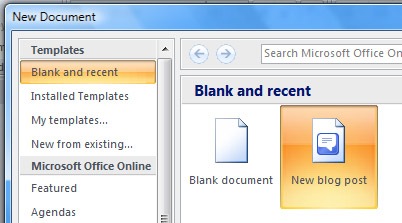
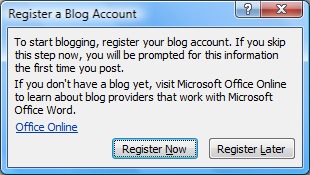
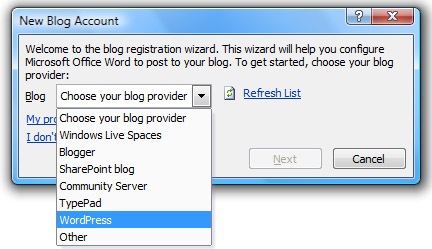
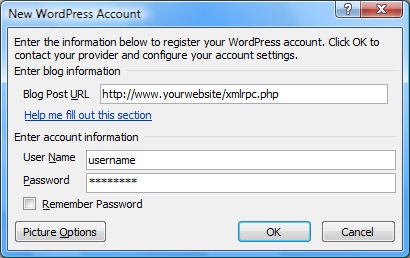
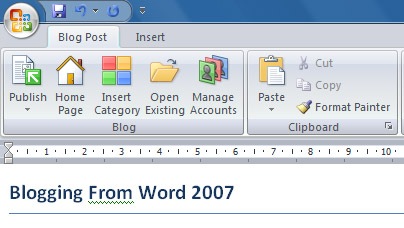
| How to Use Microsoft Office 2007 as Blogging Tool [-| Life Rocks! 2.0 |-] Posted: 28 Apr 2008 01:40 PM CDT There are lots of free softwares for blogging and Windows Live Writer is one of the most popular one. In case you are using MS Word 2007, then you can use Word as a blogging tool. Word has all the basic options for composing and publishing posts. To compose posts using Word 2007, click on the office button on top left corner of the page and select New. In the new document box, select New blog post. If you are selecting this option for the first time, you get a pop up box asking you to register for a blog account and select the the blog provider. Next you need to provide the login details of your blog and the remote posting url. Once you have done with the configuration, you get a confirmation. Now you can start composing posts with the word editor. One you are done with composing, publish the post using the Publish button.       | ||||||||||||||||||||||||||||||||||||||||||||||||
| Convert FLV to AVI, MPEG and WMV with Freez Converter [-| Life Rocks! 2.0 |-] Posted: 28 Apr 2008 07:26 AM CDT When you download videos from sites like YouTube, the format will be .flv which cannot be played in Windows media player. Freez Converter is a free tool to convert Flash FLV video files to AVI, MPEG, WMV video files so that they can be played in Windows Media Player or edited by video editing software. With this freeware, you can set output video’s bitrate, framerate, output audio’s bitrate. It can also convert batches of Flv files to AVI/MPEG/WMV files with high speed. The software has options to select the video birate and also the output video size. Freez Converter is free to download and use.       | ||||||||||||||||||||||||||||||||||||||||||||||||
| How to download songs as MP3 from Muxtape? [Killer Tech Tips] Posted: 28 Apr 2008 07:25 AM CDT Muxtape created waves recently. Muxtape is a site that allows you to upload around 12 songs and share them with others easily. You can sort your songs and create playlists and share your Muxtape URLs with others. You can easily go to a Muxtape URL, click on a song and begin listening.
Please be advised that Muxtape doesn’t allow you to upload “multiple songs from the same album or artist or songs [you] do not have permission to let Muxtape use”. In case you’re wondering if there’s a way to download a song from Muxtape, there isn’t. However, you could easily download every song you see on Muxtape as an MP3 file to your hard drive - with a Greasemonkey addon for Firefox. How to Download songs as MP3 from Muxtape?First, install the Greasemonkey extension for Firefox by downloading it from here. Restart Firefox. Then, grab the Muxtape Downloader Greasemonkey script by clicking on the ‘Install this Script’ button on this page. Now, when you go to a Muxtape URL, you should see a little ‘Download’ link under every song’s title. Click on that, it’ll take you to the MP3 version of the song which you can download to your computer. Just make sure you add .MP3 to your downloaded file, in order that it can be played. So that’s how you download songs from Muxtape to your hard drive as MP3 files. Simply awesome, isn’t it?       | ||||||||||||||||||||||||||||||||||||||||||||||||
| How to enhance video quality for dark low-res videos [Online Tech Tips] Posted: 28 Apr 2008 06:32 AM CDT Copyright Feed Content - OnlineTechTips - Aseem Kishore 18254532AKMK Want to enhance the video quality of that funny dance your friend just did which you happen to catch on your cell phone camera? With video cameras built into so many mobile devices today, including cell phone, PDAs, laptops, etc, there is an explosion of dark low-resolution and plain crappy looking videos all over the Internet. Luckily, there’s a way you can enhance your dark or jerky or low-res videos so that they appear half decent. All you have to do is upload your videos and a software program will analyze how the neighboring frames in your clip are related to one another and combine them to make a cleaner, higher-resolution video. FixMyMovie is a video enhancement site powered by MotionDSP’s patent-pending video technology. It makes movies from your mobile phone, digital camera, or webcam look great. FixMyMovie can increase your video resolution up to 4 times, remove noise, fix poor lighting conditions, stabilize low frame-rate videos, reduce noise and artifacts, enhance color, brighten and darken videos, grab high-res JPEG stills from your videos, and convert videos to the high-bitrate H.264 for higher quality. Sweet! It’s pretty simple to use also, just upload a movie to the site or email it to upload@fixmymovie.com. The fixing up process can take anywhere from 2 minutes to 1 hour depending on the size of your video. You’ll get a link to your file via email or SMS which you can download to your computer. You can then easily share it with your friends and family by emailing them the link, embedding it on your blog or website, or publishing it onto YouTube. Here are some cool examples of how FixMyMovie can make your crappy quality videos look much better:
Other cool things about the service include the fact that you can download a high-res version of your video to your iPod by clicking on the “iPod Video” link beside your video. You can also see how well FixMyMovie fixed your movie by clicking the "Compare" button to show the original and enhanced version side-by-side. FixMyMovie supports: ‘avi’, ‘mpeg’, ‘mpg’, ‘mov’, ‘rm’, ‘flv’, ‘wmv’, ‘3gp’, ‘mp4′, ‘3g2′ Overall, it’s a pretty cool service and very useful for the hordes of people taking videos with their cell phone cameras! Give it a shot and see how your video comes out. Enjoy! Technorati Tags: enhance video, enhanced video, enhanced video renderer, enhance video quality, video enhancement, how to enhance video, video enhance software
Related postsCopyright © 2007 Online Tech Tips. Aseem Kishore (digitalfingerprint: a59a56dce36427d83e23b501579944fcakmk1980 (66.150.96.109) ) How to enhance video quality for dark low-res videos  | ||||||||||||||||||||||||||||||||||||||||||||||||
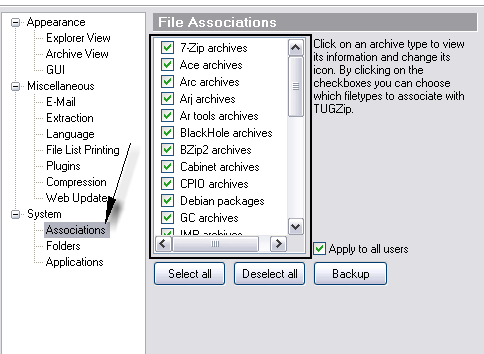
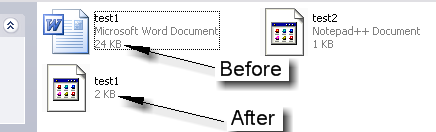
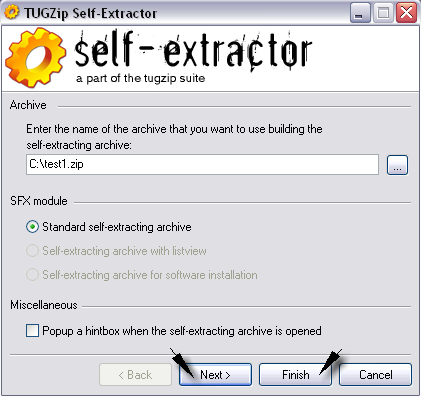
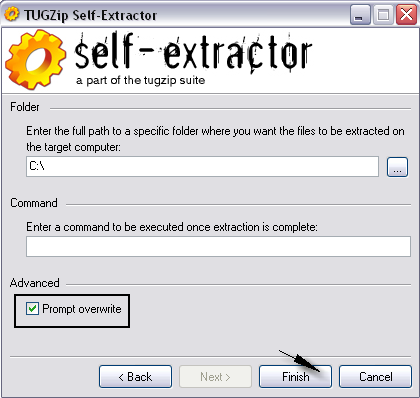
| TugZip, an alternative to WinZip [Online Tech Tips] Posted: 28 Apr 2008 06:12 AM CDT Copyright Feed Content - OnlineTechTips - Aseem Kishore 18254532AKMK Looking for free zip/compression software? ZIP, 7Z, CAB, and GZIP; these are just a short list of compressed file formats you may have encountered before. What is a compressed file you ask? On a basic level, a compressed file is one that has some degree of unused space taken out for purposes of shrinking the actual size of a file. This is especially helpful for programs that create excess unused space with data files. As an example, if you create a new Microsoft Word document, and type only a few words on it (using the words “This and that”) and save it as a Word DOC file; it is 24K (kilobytes) in size. Using a basic editor, like Notepad, you type the same words, save the file as a TXT file; and the size is only 1K. The Word document you just made is 24 times the size of the simple text file. Granted, the Word document starts at 24K, it does not grow exponentially. But this will help to illustrate a point. Let’s say that our goal is to save as much hard drive space as possible. We will want to shrink the test1.doc file down some to accomplish this. To assist us in this matter, we want an easy to use compression utility. WinZip would work fine, but perhaps you want something along the lines of a zero cost, freeware solution. How about a program called TugZip? Looking at the two files in front of us, the text document is small enough, so turn the attention to the Word document. Assuming we have TugZip installed, all one has to do is right-click on test1.doc, then click on Add to: test1.zip. Now our new test1.zip file contains the original data, but without the unused space. The file has effectively been reduced to approximately 8% of the original size. We can now delete the original test1.doc file since we have a “zipped” copy. While WinZip might have a nicer looking graphical interface, TugZip does the same things without lightening your wallet. TugZip can do two things that would normally cost someone $80 with WinZip. The WinZip basic version is $30, and the extra tool to create self-extracting compression files (someone else can open them with the need for WinZip or TugZip), runs $50. Truth be told, TugZip has several features, and I could go on for hours; but I will highlight what I believe are the big two: Compression and Extraction, and making Self-Extracting Files. First up to bat, the Compression and Extraction features. TugZip can create and extract from a variety of formats. Of course, the most common one, .ZIP, it handles very well. It can compress files and folders to .ZIP, .SQX, .LZH, .7Z (heavy compression, takes a while, grab some coffee), .BZ2, and .TAR (Linux tarball) file formats, along with a few others. Linux users may recognize the .BZ2 and .TAR formats. On the extraction side of the equation, TugZip recognizes a wider list of file formats that it can extract from. These include .GZ (GZIP), .JAR (Java Archive format), .RPM (Red Hat Package Manager), as well as those listed above in the creation section. Within TugZip, should you click on Options, Configuration, then locate the Associations heading, you can find the list of everything TugZip supports. Though WinZip requires you make a separate purchase for its self-extracting add-on utility, TugZip has this tool bundled in with the installation file. From the TugZip menu, under Program Files, or All Programs, you will find the TUGZip Self-Extractor. This is the starting point for creating a compressed file that can be opened on its own. To begin, you are asked to choose a compressed file that you wish to convert to a self-extracting file. For this example, we will use the test1.zip created earlier. TugZip typically chooses the Standard option at this point. Right now, you could click on Finish, and you have your new file; however, you can also click Next for a couple more options. In the next screen, you can specify where the compressed file will go when the file is opened. This can be handy for moving large groups of similar files between computers on a network, when you want the files to go to the same location each time. This screen also makes available an option to run a command-line script after file extraction, as well as the ability to ask the user if they want to overwrite current files with copies from the self-extracting archive file (Prompt overwrite). Once you click Finish, you will have a new file, with the same name, and an .EXE extension. For the sake of argument, I would recommend using the .ZIP format, or others, for sending compressed files through email. Every Anti-Spam and Email Anti-Virus tool that I know of will eradicate .EXE files when spotted; if it does not ask you first. TugZip can also create very large compressed files as well as password encrypt file and folders. It is lightweight, and will not run your computer into the ground, unless you are constantly compressing DVD’s worth of data. Without a doubt, it is a very handy free software tool to have around.
Related postsCopyright © 2007 Online Tech Tips. Aseem Kishore (digitalfingerprint: a59a56dce36427d83e23b501579944fcakmk1980 (66.150.96.109) ) TugZip, an alternative to WinZip  | ||||||||||||||||||||||||||||||||||||||||||||||||
| How to save MP3 File, which you can’t do without QuickTime Pro! [ReviewSaurus - The Techie Dino!] Posted: 28 Apr 2008 05:04 AM CDT Apple thinks that either they are too smart or they think that people using the computer are too stupid and that’s the reason why they don’t allow you to save the source file from the web if you are not using Quick Time Pro. They want you to buy the PRO version when you can simply go to File -> Save page as and store the file. Else you can simply right click on the link and click on Save link as , to save the Mp3 or video file and that too without the need of Quick Time Pro. Well, the above mentioned tricks are possible when the direct link of the source file is included on the web page, however there are situations where the direct link is not included then also it’s not difficult to get to the source file. Let’s say that an Mp3 file is embedded in a web page and you want to download it, you just need to follow these simple steps : 1. Right click on webpage and select View Source. This way, you’ll get the link of the file which has been embedded in the webpage and you can use that link to download the file. © BloggingSaurus - ReviewSaurus | TipsoSaurus       | ||||||||||||||||||||||||||||||||||||||||||||||||
| Send free sms anywhere in India! [ReviewSaurus - The Techie Dino!] Posted: 28 Apr 2008 04:51 AM CDT There were times when I used to search for portals through which I could send free sms and I did find them too, however after few days of operations they closed down. Reasons were clear, they didn’t have good enough business model to support them. Anyway, now it seems that we’ll have two good enough competitors in India, which allow you to send free sms to any mobile phone in India. The services are Way2SMS and GoSMS. You can send messages to anyone and anywhere in India and that too for free and the only catch is that they include an advertisement with every message you send. So instead of standard 160 character text message, you can send a text message up to 90-100 character long only. The other Con of these services is that you can expect various promotional e-mails, SMS on your mobile phone and I think you shouldn’t complain because in order to survive these services need to do this else, you’ll need to search on the internet about various other services which will allow you to send free Sms to any mobile in India. © BloggingSaurus - ReviewSaurus | TipsoSaurus       | ||||||||||||||||||||||||||||||||||||||||||||||||
| Extract images from videos using Imagegrab [Madhur Kapoor's Blog] Posted: 28 Apr 2008 04:07 AM CDT Imagegrab is a free utility which can help us in extracting images from any type of video files, VideoCds and live network streams which are delivered to the computer by a webcam or a camcorder. The program is easy to use and requires no installation. Just run the application and the window will get displayed where you can open the video.
Just open the video from which you want to extract the images using the Open video button. The video will be loaded and using the inbuilt media player, you can select the frame of which you want an image. Just click on a single button and it will be saved to your computer. You can also set the aspect ratio of the images which can be “Normal”, “4X3″ or “16X9″. You can also specify the directory where you want the images to be stored. If you want to extract images from the whole video, you can also specify the time interval at which it will take screenshots while the video is being played. It could have been much better if it would allow us to take screenshots in higher resolutions but still it is a good tool if you want to extract images of your favorite scenes etc. Download (547 Kb)        | ||||||||||||||||||||||||||||||||||||||||||||||||
| Ubuntu 8.04 - How to Setup the World Clock Applet? [Killer Tech Tips] Posted: 28 Apr 2008 03:10 AM CDT Ubuntu Hardy Heron sports an improved system clocks applet that now supports viewing of time in multiple locations. Further, the clock applet on Ubuntu 8.04 can also give you Weather details about the location. This new feature may come really handy for some users that work with distant bosses who’re in a different timezone In case you’re wondering how to tap the full potential of the improved world clock tool in Ubuntu 8.04, here’s a quick, step-by-step walk through on how you can go about using it.
First, in the panel on top click on the time that precedes the Quit button. Then, click ‘Edit’ near ‘Locations’ Click ‘Add’ in the Window that appears In the next window, type in the name of the place whose time should be displayed in the clock applet’s expanded view. Alternatively, you can use the ‘Find’ button to make a selection from a list of prominent locations around the world. Click ‘OK’. You should note that the Timezone, Latitute and Longitude details have been filled up automatically. Now click ‘OK’. You should now see the place listed along with the local time there in the expanded clock area. If you want to track the time of additional places from the clock applet, click the ‘Add’ button in the Clock Preferences Window to add more places. This is quite useful, isn’t it?      | ||||||||||||||||||||||||||||||||||||||||||||||||
| 6 Application for screecasting in Mac OS X! [ReviewSaurus - The Techie Dino!] Posted: 28 Apr 2008 03:08 AM CDT There are various software available in Windows when it comes to screencasting, although the most impressive software of all times is Camtasia Studio and any screencast maker will just agree to me on that without saying any other word. However, TechSmith isn’t generous enough to provide Snag It & Camtasia Studio for Mac OS X. After switching to Mac, I thought that I’ll create various screencasts but alas, till this date have created just one and the reason for that was that no great freeware for Screencasts is available. However, now that I’ve managed to get hold of a screencast making software, I’ll be able to produce more screencasts. Anyway, during my search of a good screencasting software, I found good, bad and some excellent screencasting software which work on Mac OS X and if you are looking for one, then you’ll find them here : 1. Jing : It’s a free and open source application from TechSmith (makers of Snagit & Camtasia Studio). It’s a great application as far as creating screencasts are concerned , however the lack of features and options make it a less competitive product. The good thing is that this product is in beta and is constantly being developed, so you never know that when exactly Jing may turn out to be the best application for screencasting, although that may take some time. 2. Screenium : Another software which is certainly as simple as Jing and can be compared to Snapz Pro X, when it comes to the features. Anyone buying this software will not regret. Although, I’ll not suggest anyone to go for it, till the time it comes out as a final product, as it’s still in beta phase. 3. Snapz Pro X : Snapz Pro X has been the most impressive of the lot. It’s full of features and provides all the options which one looks for in any screencast making utility. Make the screencasts and use iMovie to do the editing and you’ve got an impressive screencast waiting to be uploaded on YouTube. Although, it certainly needs a better interface. 4. ScreenFlow : ScreenFlow is another imperssive screencast making software and has an excellent interface too. The price is just right and if at all anyone will ask me, this is one application which I can suggest to anyone without giving much thoughts to it. 5. ScreenFlick : I’ve not used this software personally, so really can’t say that how exactly it performs. However, it’s been getting good praises from experienced OS X users. 6. iShowU : Although, it’s one of the most appreciated screencasting software for OS X, it just couldn’t impress me as much as other software did. I agree that it’s got the features but somewhere I feel that it’s been over rated. I’m sure there will be many more software for making screencasts on Mac OS X (do share with us). However, these are some of the most talked about software and the ones which I’ve looked closely or read about. What really surprises me that there isn’t any great freeware for OS X which can take competition from any of these applications. © BloggingSaurus - ReviewSaurus | TipsoSaurus       | ||||||||||||||||||||||||||||||||||||||||||||||||
| Posted: 27 Apr 2008 10:39 PM CDT This is no exaggeration. A true story I’d like to share with you, probably you’ll have something to take back home. I had launched a new website this April 12, related to the IPL chennai super kings. If you don’t know what that is, it’s a cricket team in the Indian Premier League and I support them. This is how the whole thing began. - April 12 - April 13-15 - April 15-18 - April 18 - 22 Okay, so I went about doing a quick SEO campaign for the site, the next few days.
Looks very simple eh? It is indeed. Simple strategies but doing the right thing at the right time really matters. Current Stats VISITS Total 17,236 PAGE VIEWS Total 34,471 Traffic Stats over the last 7 days I think for the little effort from my side, the results are very interesting. Some crucial things that made me achieve the results are - i) Putting up a banner ad on DailySEOblog. (If you want one, do let me know) Now, that the traffic is there, I’ve put up AdSense ( bad choice huh?) and some banner ads, if at all they make some money, why not try them? Copyright © 2008 DailySEOblog.com. This Feed is for personal non-commercial use only. If you are not reading this material in your news aggregator, the site you are looking at is guilty of copyright infringement. Please contact legal@www.dailyseoblog.com so we can take legal action immediately. Plugin by Taragana    | ||||||||||||||||||||||||||||||||||||||||||||||||
| WSR Macros: Create Voice Command Macros with Speech Recognition on Windows Vista [Tech[dot]Blog] Posted: 27 Apr 2008 09:49 PM CDT Windows Speech Recognition Macros is a free add-on that extends the speech recognition capabilities in Windows Vista. Users can create powerful macros that are triggered by spoken voice commands to interact with applications. These macros can perform a single task, or a series of tasks. Macros can be as simple as inserting your mailing address to as complex as providing a completely different speech interaction utilizing a number of built in capabilities or utilizing custom JScript/VBScript actions. While creating simple macros is very straightforward, the creation and editing of more complex macro files is best suited for advanced users. Creating a Speech Macro This example will show you how to create a simple macro that will insert your mailing address into the current application whenever you say "my mailing address." 1. Right-click on the WSR Macros icon to display the menu and choose "New Speech Macro…"          | ||||||||||||||||||||||||||||||||||||||||||||||||
| 6 Simple Steps to Reduce the Memory Consumption in Firefox [-| Life Rocks! 2.0 |-] Posted: 27 Apr 2008 01:40 PM CDT Firefox is undoubtedly the best browser among techies and developers and preferred over the other browsers because of the support for vast number of plugins. Firefox can become a memory hog and stops working if too many add-ons are installed and also due to few other reasons. Many of the times Firefox uses more memory due to memory leaks, faulty third party applications. Here is 6 Simple steps to reduce memory consumption in Firefox. NB: Whenever you are editing config file, please take a back up. 1. Check Add-ons and themes: One of the primary reasons of Firefox slowing down is due to large number of installed extensions. We are tempted to try out each and every fancy add-ons and these could slow down Firefox. Few things to take care while installing and using add-ons
You can also check Firefox memory usage by opening Firefox in safe mode by disabling all add-ons. To open in Safe mode, either you can select it from the programs menu or type firefox -safe-mode in run command. 2. Check existing memory usage: You can check how Firefox uses memory for caching images and web pages. This setting is a hidden one and to check it type about:cache in the address bar and press enter. Under the Memory cache device heading, Maximum storage size refers to the maximum amount of memory Firefox will use for this purpose, and Storage in use refers to the current amount of memory Firefox is using for this purpose. By default Firefox uses more memory on computers having more memory, you can change it to custom value and lower it. But lowering the cache memory makes websites take time to load. To modify the maximum storage size, you need to open config file, for this type about:config in the address bar and right click anywhere in the file and add a new integer. In the preference name enter browser.cache.memory.capacity and type in the maximum memory size in kilo bytes. 3. Restore Memory on Minimize: When Firefox is minimized, the memory is released and the way its released can be configured. Type about:config in the address bar and enter. In the config file, right click and select new Boolean value. Enter the name for this setting as config.trim_on_minimize and set the value as true. To remove this entry, right click on the entry and select Reset. 4. Check for latest versions of plugins: If the installed plugins like Adobe reader, flash player etc have older version, then this could be a reason for Firefox to be slow. Make sure you have the latest versions of all the plugins installed. 5. Clear Download History: If you download files and software from the web using Firefox, all these files are available in Firefox Download History. Large number of entries in Download History can slow down Firefox. To delete download history, go to Tools-> Clear Private Data and check the box “Download History”. 6. Restart Firefox periodically : If you are using Firefox for long hours, then its advisable to restart Firefox periodically as Firefox memory usage increases when kept open for long hours. You can use the session restore feature in to bring back all the windows after restart.       | ||||||||||||||||||||||||||||||||||||||||||||||||
| Hack Attack : Find The Most Obscure MP3’s Using Google [dailyApps] Posted: 27 Apr 2008 11:31 AM CDT
Music sharing has been of the most common file sharing activities on the internet. There are many ways you could find the music you were looking for by using tools like Limewire, BitTorrent etc.. But most times nothing beats a Google search does it? Yes you heard that right.. Google may as well be your best friend if you are looking to find music freely on the Internet. Just follow the instructions below, and you will be on your way to find the music that you otherwise won’t find on P2P networks. The hack simply involves the major search engines revealing their vast indexes to you so that you can find what you are looking for.
I’m going to give some modified special search strings that will help you find hidden stuff from Google, Yahoo and MSN. How to Accomplish the HackClick on the links below for your favorite search engine. Modify the details according to your liking (for example replace Linkin Park with Radiohead or just the song name). Change the "wma/mp3″ tag to other format such as "ogg" if you wish to download the music in other not so popular formats.
Using the major search engines should help you find any kind of music you are looking for, but there other alternative music only search engines also available that deserve a mention. Check out Alltheweb Audio (mp3), mp3realm and espew So that was it. I hope this guide will help you find the music you have been looking for quite some time now.. Have a musical day ahead. Do drop in a comment with the song/artist/band that you found with this hack! Special Credit to Blog Anything Related Posts at DailyApps      |
 Latest version of Foxit 2.3 has been recently launched, Foxit has already established itself as a light weight, full featured PDF reader.









 I had started this website just because I had to support them and the official website was scrap. I had no intentions of monetizing it, as a matter of fact I wanted to have a better site for the fans, that’s about it. But things have gone totally out of hand now (for the good that is.). Let me tell you in detail.





| You are subscribed to email updates from India Technology Bloggers To stop receiving these emails, you may unsubscribe now. | Email Delivery powered by FeedBurner |
Inbox too full?  Subscribe to the feed version of India Technology Bloggers in a feed reader. Subscribe to the feed version of India Technology Bloggers in a feed reader. | |
| If you prefer to unsubscribe via postal mail, write to: India Technology Bloggers, c/o FeedBurner, 20 W Kinzie, 9th Floor, Chicago IL USA 60610 | |


No comments:
Post a Comment